
How automatic message translation works in Kommo with AnyLinga
AnyLinga automatically translates messages between clients and sales reps in Kommo. Incoming messages are translated into the employee's language, and replies into the client's language.
Translation works in connected chats, including WhatsApp messages in Kommo. Below, learn how to configure employees, choose the client's language, and check messages that are not translated.
What you'll need
- A PRO plan or an active 7-day trial. Startup does not include translation: plans.
- Active Kommo employees for whom you will configure translation.
- Access to Automation → Translation in AnyLinga.
- Available translation credits: translation credits.
How incoming messages and replies are translated
Incoming client messages always arrive in Kommo. AnyLinga only determines whether translation is needed. The primary target language is the language in the in Kommo column for the employee responsible for the lead, if Translation is enabled for them. Otherwise, if translation is enabled for only one employee, that employee's language is used.
A sales rep's reply is translated from the author's language, specified in in Kommo, into the client's language. If the client's language is not yet known, AnyLinga does not guess: the reply is sent in its original language.
1. Compare an incoming message and a reply
- Check the incoming message in the Kommo chat. It should be translated into the employee's language if the translation conditions are met.
- Write a reply in your language. If the client's language is known and differs from yours, the reply is translated before it is sent.
- Media captions are translated like regular text. Links and phone numbers within the text are preserved, as are glossary terms: translation model and glossary.
2. Check when messages are passed through without translation
- Incoming messages are not translated if the subscription is inactive, the plan does not include translation, no employee has Translation enabled, credits have run out, or translation is disabled for the group.
- Incoming text already in the target language, media without captions, location and contact cards, and bot commands are also not translated.
- An outgoing reply is sent unchanged if its author has Translation disabled, the client's language is unknown or matches the author's language, the message is a WhatsApp (WABA) template, or credits have run out.
- Text shorter than two characters and messages containing only emoji or punctuation are not translated.
- If a sales rep is already writing in the client's language, this is detected for text of roughly 40 characters or more. Shorter text is treated as being in the sales rep's language.
How to configure employee translation
3. Open the translation page
- In the sidebar, select Automation → Translation. This menu item appears if your plan includes translation.
- Click Refresh from CRM. Only active employees are listed on the page.
- Check the Last synced label. If the list is empty, you will see: No employees yet. Click "Refresh from CRM" to sync.
4. Enable translation and choose the employee's language
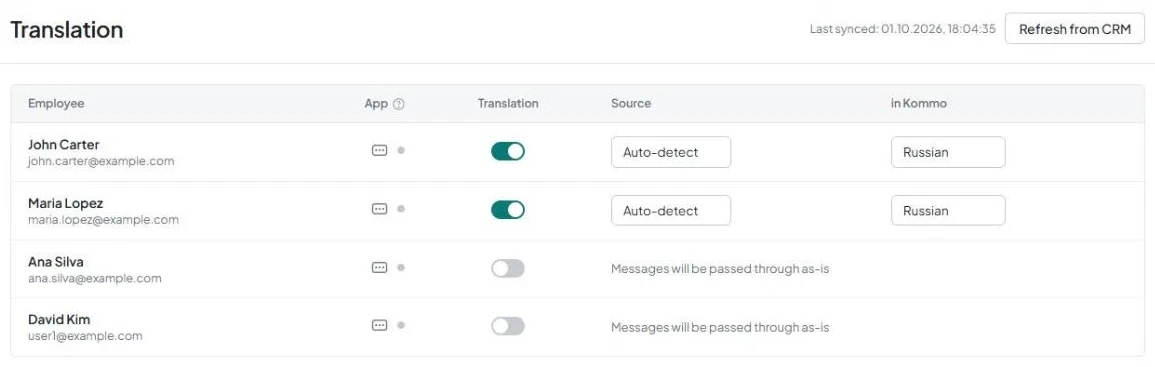
- The table has the columns Employee, App, Translation, Source, and in Kommo.
- Enable Translation for the employee. Under in Kommo, select their own language: Russian, English, Spanish, Portuguese, German, French, Italian, Indonesian, or Turkish.
- When the toggle is off, the language cells display Messages will be passed through as-is.
- Translation is enabled for new employees, and their language is taken from the language of your AnyLinga interface. If it is not specified, English is used.
How the client's language is detected and changed
The client's language is stored separately for each chat. AnyLinga detects it from incoming messages; the translation engine also detects the language of each incoming message. In Telegram, the language may be known before the first text message, based on the client's app language.
Initial detection requires text containing letters. Two messages with the same detection result confirm the language. A confirmed language does not change automatically: after three messages in another language, an English notification appears in the chat suggesting the !lang xx command. A manually selected language is never overridden automatically either.
5. Check the chat language note
- Open the record and find the language note. For example: Chat language: Portuguese (PT) — detected from the client's message.
- Every language change is recorded in a note. A manual selection is marked set manually., and if there was a previous language, Was: … is added.
6. Set the language for this chat
- In the AnyLinga widget in the record, select a language in the 🌐 Translate chat to: field. Learn more: widget in the record.
- Alternatively, send the command !lang pt in the Kommo chat for Portuguese. The command is not sent to the client.
- To restore automatic detection, select Auto or send !lang auto.
- After you restore automatic detection, the note Chat language: auto-detect — it will be taken from the client's next message. appears.
What to check if messages are not translated
7. Check the plan and employee toggles
- Make sure your plan includes translation: Translation should appear in the menu.
- For outgoing messages, check the message author's Translation toggle.
- For incoming messages, make sure Translation is enabled for at least one employee.
8. Check the client's language and credits
- If a reply is not translated, check whether the client's language is known. If needed, set it in the widget or with the !lang xx command.
- In the widget, check the line Translation credits: N remaining.
- When the balance reaches zero, the chat displays: [AnyLinga] Translation not performed: translation credits have run out. Messages are delivered in the original language. Top up in AnyLinga → Billing.
- Learn more about your balance and topping up: translation credits.
9. Check the text, subscription, and error log
- Make sure the text is actually in another language and is not too short. Check the exceptions in the section on messages passed through without translation.
- Check whether the widget shows the Subscription expired status.
- Open Monitoring → Activity Log and set the Translation Errors filter.
Get in touch
We reply during business hours.
New to AnyLinga?
Try it yourself, or we'll set it up for you when you pay for the first month.