How to set up your account, language, timezone, and notifications in AnyLinga
In AnyLinga settings, you can change your login details, choose the interface language and timezone, and set up email and Telegram notifications.
Below, you'll find where to access these settings and how to delete your account if you no longer plan to use it.
What you'll need
- Access to your AnyLinga account.
- A new email address if you want to change your account email.
- Your current and new passwords if you are changing the password for an account with an email address.
- Telegram if you want to receive notifications in a chat.
Where to find AnyLinga settings
Click the Settings gear icon at the bottom of the sidebar. The Account tab opens by default.
The Billing, Language & Time, and Notifications tabs are also available here. The Broadcasts tab appears only when broadcasts are enabled.
For subscription settings, see plans and billing.
How to change your account details
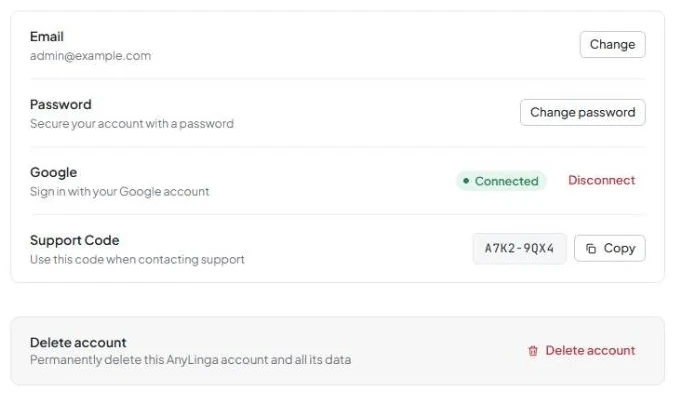
1. Change your email
- Open Settings → Account.
- In the Email row, click Edit.
- Fill in the New email field and click Save. To exit without changes, click Cancel.
2. Set or change your password
- Find the Password row labeled Secure your account with a password.
- Click Change password.
- Enter your Current password if your account has an email address.
- Fill in the New Password and Confirm new password fields.
3. Set up Google sign-in
- In the Google row labeled Sign in with your Google account, check the status: Connected or Not connected.
- Use the button to connect or disconnect your Google account.
- For more about sign-in methods, see sign-up and login.
4. Copy your support code
- Find the Support Code row labeled Use this code when contacting support.
- Click Copy and use the code when contacting support.
How to choose a language and timezone
5. Choose the interface language
- Open Settings → Language & Time.
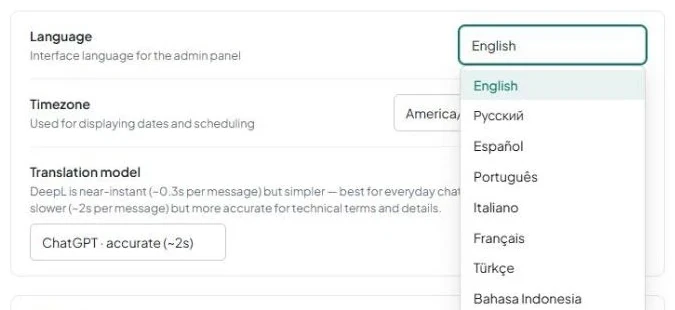
- Open the Language dropdown labeled Interface language for the admin panel.
- Choose one of eight options: English, Russian, Spanish, Portuguese, Italian, French, Turkish, Indonesian.
6. Set the timezone
- In the Timezone row, choose an option from the fixed list of 23 zones, such as UTC, Europe/Moscow, or Europe/London.
- This timezone is used to display dates and for scheduling. Event times in the activity log also appear in the selected timezone.
How to set up AnyLinga notifications
7. Choose email delivery
- Open Settings → Notifications.
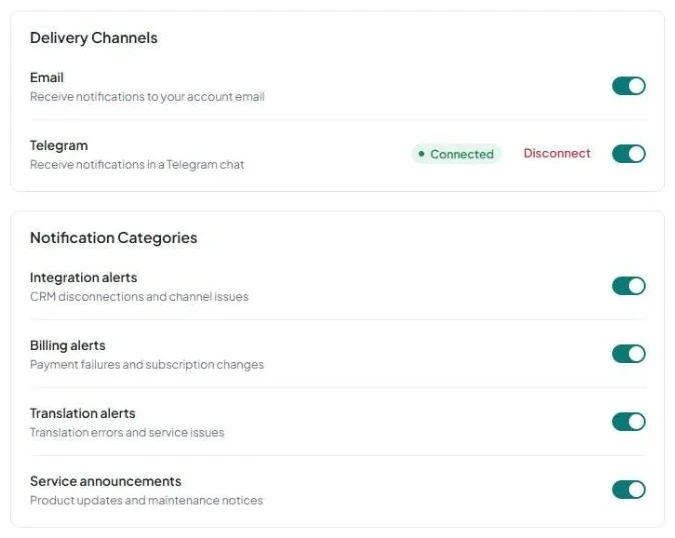
- In the Delivery Channels section, find Email, labeled Receive notifications to your account email.
- Turn the toggle on or off. It is on by default.
8. Connect Telegram notifications
- In the Telegram row labeled Receive notifications in a Telegram chat, click Connect.
- The Telegram notification bot will open through a personal link. Connect it.
- Check for the Connected status and turn on the channel toggle.
- To disconnect, click Disconnect.
9. Choose notification categories
- In the Notification Categories section, set the toggles for the categories you need.
- Integrations — CRM disconnections and channel issues.
- Billing alerts — Payment failures and subscription changes. This includes failed payments, payments requiring action, and upcoming renewals.
- Translation — Translation errors and service issues. This category is available only when translation is available.
- Service announcements — Product updates and maintenance notices.
How to delete your AnyLinga account and what happens to your data
Open Settings → Account. In the Delete account section labeled Permanently delete this AnyLinga account and all its data, click Delete account. Enter “confirm” and click Delete permanently.
Channels and integrations will be disconnected and deleted. Conversations, translations, templates, broadcasts, and settings will be permanently deleted. Deletion cannot be undone.
Your subscription is canceled immediately. The paid period and unused credits are not refunded. A new trial period is not provided after deletion.
If you do not delete your account but do not renew your subscription, a three-day grace period applies first, then account access is blocked. Until the subscription ends completely, incoming messages are saved and delivered after payment. After the subscription ends completely, or after the trial period expires, incoming messages are discarded.
The activity log in Monitoring shows events from the last 30 days. This is the display period for log events, not the retention period for conversations.
Get in touch
We reply during business hours.
New to AnyLinga?
Try it yourself, or we'll set it up for you when you pay for the first month.